Highlight a YouTube title.
Turn a phrase in your video title into an animated highlight. Edit the channel details, add your logo and export a short clip for your next montage.
Create a title highlight MP4 / WebM · 2–8 s · No watermark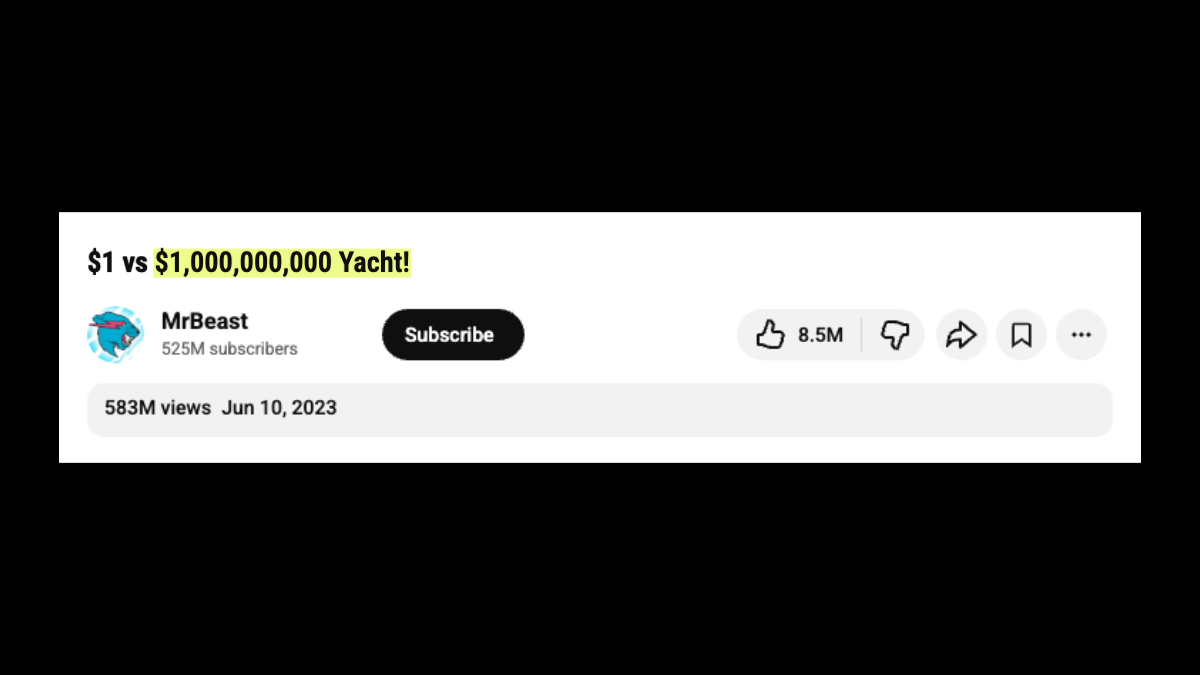
Three places to use a title clip
Introduce a tutorial
Highlight the technique, then cut to a shot that demonstrates it. Keep the title visible long enough to read before your explanation starts.
Try “one light”Set up a comparison
Use the comparison phrase as a bridge between two versions of your footage. Match the clip’s format to the surrounding sequence.
Try “before and after”Tease a longer video
Introduce the outcome in a vertical teaser, then show the actual finished work. The title clip does not add a clickable YouTube link.
Try “the final result”
Build your title clip
- Open a preset, then choose Edit details. Replace the full title and channel name; upload a PNG, JPG or WebP logo if you want a custom avatar.
- Select the words to highlight directly in the full title. You can change subscribers, likes, views and the displayed age. These values are entered manually, not synced with YouTube.
- Choose the highlight colour, framing and duration. Start with three seconds and Locked framing; check the text at phone size before choosing a larger Text size.
- Export MP4 or WebM, then import the clip into your video editor. Add your footage and soundtrack there; CUTROOM does not assemble the full video.
CUTROOM accepts 180 characters in the title field and 36 in the highlighted phrase. A real YouTube video title is limited to 100 characters, so keep your recreation within that length when matching a published title. YouTube’s title settings.
Before you export
Can I paste a YouTube URL?
No. Enter the title and channel details manually. This tool creates an editable interface graphic; it does not download a video or capture its watch page.
Does this change my title on YouTube?
No. The highlight is part of the exported video. It does not change a published title, channel page or thumbnail.
Can I place the title over my footage?
The export includes a black background and a white interface. It is not transparent. Use it as a cutaway, or crop and arrange it in your editor.